Showing posts with label windows 10. Show all posts

Saturday, April 11, 2015

So Much For That…

A while ago, as part of the overall Technical Preview program for Windows 10, Microsoft released a Technical Preview of the phone version for Windows 10 to those brave souls willing to take the risk of "bricking" their phones in order to test and help improve the latest mobile offering from Redmond.
However, due to an issue with the size of the install partition - a boring technical issue that I won't get into - only a limited number of phones were eligible to run the pre-release OS.
My phone was not one of them.
Recently, they announced that they would be releasing a new build that would be available for a wider range of phones, including mine, and provided a release date and time of April 10th at 10 AM PDT.
I decided to give it a shot - in the worst case, it would brick my 2+ year old phone and I'd pick up a cheap, low-end Windows Phone off-contract to tide me over until MS finally releases a new "flagship" phone later this year along with the official release of Windows 10.
Having gotten distracted by something else, it was a few minutes after the launch went live before I fired up the Windows Insider app to start the update process.
I was promptly greeted by a server error.  I tried again off and on for a while, and checked online to see if this was a known issue and if there was a fix in the works.  It was, and there was, and some hours later I was able to get the ball rolling and the update downloading.
It took a lot longer for the update to install than any other update I've done on my phone, but eventually the phone rebooted and I was greeted with the new look of the Windows 10 UI.
I was not, however, greeted with much in the way of actual functionality.  Most apps would immediately crash upon opening, and the battery was draining at a pace that would make Barry Allen say, "Slow down, Turbo."
It's worth noting that one of the few apps that I could get to work properly was the Photos app.  I found this amusing because on the PC version of the Windows 10 Technical Preview, the Photos app is the least usable app an can barely be said to function at all.
The new Outlook Mail app would open and bring me to a "Getting Started" screen to add accounts, as it didn't appear to carry over any of my existing e-mail accounts.  I attempted to add my GMail account, and it went through all the steps, including bringing me to the screen from Google asking me to authorize the app's access to my account.  At that point, however, a message popped up saying, "Oops!  Something went wrong!"  It then sent me back to the "Getting Started" screen, which had become unresponsive and would not allow me to try again until I closed and reopened the app, which would result in the same error when trying to add GMail, and no error message, but a return to the unresponsive "Getting Started" screen if I tried adding any other type of account.
I decided that a reboot was probably in order.  However, upon starting back up, the phone indicated that there was no SIM card present (there was), and that no wireless networks were available.  Another reboot did not solve the problem.
Before running the recovery software to attempt to go back to the previously-installed OS, I decided to do a hard reset, which would wipe all the data on the phone and give me a fresh start.
Once the reset was done, it attempted to restore some of my data.  Mostly preferences - account information, Start screen layout - etc. but there were several items that couldn't be restored because they depended on features that are no longer supported, or required files that were no longer present.  A particular folder of photos that I had pinned to the Start screen couldn't be restored, for example, because the photos it contained were wiped from the phone's storage.
I wasn't terribly concerned - there was nothing on the phone that was irreplaceable - particularly given that it was now recognizing my SIM card and was able to connect to my wireless network.
Additionally, upon launching the Outlook Mail app, I saw that all of my existing accounts were in place, though I did have to log back in to each of them.
With the Technical Preview up and running, I can share my initial reaction to some of the changes and new features, as well as some of the bugs I've encountered.
Let's start with the Pros:

Outlook Mail and Calendar - The two apps can be accessed separately, but are directly linked, and they look great.  Evidently they leaned heavily on the look and functionality of the recently-acquired Accompli in designing the apps.  I love being able to swipe to delete a or flag a message.  Not thrilled about the "hamburger" menu, but that's a battle that I think users have lost at this point, unfortunately.
Project Spartan - It's still extremely rough around the edges, but just the fact that Microsoft's next-generation browser is included in this build at all is a good thing.
Action Center - There have been multiple improvements here, including the option to Expand and see additional actions and settings.  Also, the ability to interact with notifications inline - being able to reply to a text from the notification without having to switch to the Messaging app, for example - is pretty damn cool.
Messaging - It's a nice - if long overdue - touch to actually show the contact picture for the person you're communicating with in the view of Conversations.  Also, the individual conversation threads themselves look somewhat more modern with the changes to the message balloons.
Settings - Being able to pin individual settings to the Start screen is a handy feature.
Bluetooth Keyboard Support – Another “about damn time” feature.  Of course, I wasn’t able to get this to work; while it attempted to pair with the one Bluetooth keyboard I had handy, much like Jon on a date* it wasn’t able to seal the deal.  Of course, that may have been a user error problem (again, much like Jon on a date).

...and I'm not going to list the Cons, because just a little while ago the Technical Preview bricked me.
Fortunately, I was able to roll back to 8.1 using the Lumia Recovery Tool, but making my phone completely unresponsive is the biggest Con there is, so no point in listing the other issues right now.
In fairness, it is an install-at-your-own-risk piece of pre-release software, so I can't complain too much, but until they provide a more stable build, I don't think I'll be making any further attempts at using it any time soon.
That said, I did have the opportunity to provide some feedback (which is what the Technical Preview is for), and to at least add my own to the chorus of voices calling out for some specific changes and improvements.
In the meantime, I'll keep using the PC/Tablet version on my Surface Pro 2 and providing additional feedback there.

*Though the fact that it was even able to attempt to pair puts it well-ahead of Jon on that front.

Tuesday, March 03, 2015

Make It A Perfect 10

As mentioned in previous posts, when my Surface Pro 3 ran into a hardware issue and had to be replaced I busted out the Surface Pro 2 to fill in for its younger sibling.
While I was at it, I installed the Technical Preview of Windows 10, the latest OS upgrade from Redmond, scheduled to be officially released later this year.
The point of the Technical Preview is to give users the opportunity to kick the tires of the OS and take it for a test drive  in order to provide feedback, either directly or via other data sent back to Microsoft via crash reports and the like, on areas for improvement in terms of performance and the UI, but it also represents a chance for Microsoft to test the waters and gauge users’ interest in new design paradigms, new services, and the overall direction of the windows line, and it gives me an opportunity to mix metaphors, apparently.
In any case, it was my intention to write up a post about my experience so far with the next generation Operating System.
However, despite the fact that I have the Preview installed on the SP2 and one of my spare desktop systems, between receiving my replacement SP3 and breaking in the new Cintiq, I really haven’t done much with it.
Even when the SP2 was serving as the temporary replacement for my SP3 I wasn’t really using it as my daily driver, as I found myself spending more time on my main desktop PC using the Cintiq, and now the SP2 is sitting upstairs in the library, and, like the spare desktop set up in one of the other bedrooms, it’s remained largely untouched.
The only real observations I can make about Windows 10 at this point is that the UI is somewhat inconsistent and in many ways represents a step backwards, and Google Chrome is agonizingly slow on it.
I am pleased to see Cortana on the desktop, and I’ve enjoyed using the “Hey Cortana” functionality, but at this point, while I think that Cortana will ultimately be something of a game-changer when it comes to everyday computing as the virtual assistant matures and becomes more sophisticated, and I still think that “she” is pretty cool, as with her Windows Phone counterpart I find that I honestly don’t have that much use for her at present.
Sure, the “chitchat” functions are entertaining, and I do use her to set the occasional reminder, but most of the time I’ve got my phone in vibrate mode, and sometimes I just plain forget that she’s there.
On the PC, her functionality remains somewhat limited in comparison to the phone iteration, so there was even less reason – or likelihood – for me to interact with her.
That said, I do have some thoughts on the Cortana and her potential that can serve as fodder for a future post.
But to bring things back to Windows 10 – as an aside, there’s a Technical Preview available for phones as well, but it’s only available for a small sub-set of phones, of which my phone isn’t part – apart from some of the interface changes, for the most part it’s…well, it’s Windows.
Sure, the icons are different – well, some of them are, at any rate, which is, er, consistent with the inconsistency issue I mentioned – and the Start Menu is now this weird mix of old and new, but the underlying experience is largely the same.
And that’s the problem.
Yes, ultimately, in a lot of ways, it’s good for Microsoft and consumers, in that it has the potential to be new and interesting while still familiar, which is kind of the perfect response to the consumers who want something new but still want everything to work the way it always has, and that compromise – along with making it free to the majority of users for the first year – will help to address a lot of the concerns that kept people away from Windows 8 and speed up adoption of the new OS.
While I tend to err more on the side of new and interesting than on the comfortable and familiar side – I was an early adopter of Windows Phone, after all, and remain a fan of the platform, and I like Windows 8/8.1 and tiles and the modern (metro) design language – I have no complaints about Microsoft making this compromise.  Yes, I would like a lot more wow factor, even at the cost of having to learn a new way of doing things, but I get that there’s a need to satisfy the more conservative users.
So it’s not as shiny and new as I would like, but I’m okay with that.
My problem with the meet the new OS, same as the old OS approach isn’t about the visual appeal, it’s that in simply building on the old foundation any new version of Windows is going to have the same underlying issues as previous versions (and new ones besides, which will then carry over to future builds).
And so far with what I’ve seen of Windows 10, that’s as true now as it was in the days of Windows 98 or, God help us, Windows Me*.
So, after that lengthy preamble, here is my list of Windows gripes that, if they were to be addressed, would make me a fan of Windows 10 even if the end result were something that looked like Windows 3.1.
First up is what I call the “Yeah, I know you didn’t really mean that” effect.
Sometimes you make a change to a setting in Windows because the default behavior doesn’t work for you.  The new behavior, after the adjustment, turns out to be exactly what you needed.  Hooray!
Except Windows decides that you weren’t serious, and, at some random point, decides to change things back to the way they were.
As an example, take the Tablet PC settings**.  When Microsoft launched its touch/stylus based variant of Windows XP back in the beginning of the current millennium, it brought with it settings for controlling various Windows behaviors as they relate to touch or pen input, which have since been incorporated into all flavors of Windows, given that we live in a very touch-centric world.
One of those settings is for determining handedness.  By default, Windows assumes that a user is right-handed, which makes sense, given that only about 10 percent of people are left-handed.  I’m part of the 90 percent, so one would assume that I’d leave the default setting alone.  The problem is that I don’t like the way things work when it’s set for right-handed use.  When set to right-handed, context menus appear to the left of your cursor.  I prefer that menus appear to the right, so I always set my computer to left-handed.
Everything will be going along nicely, and then one day I’ll do a right-click to bring up a menu and the menu appears to the left, because Windows decided to change things back to the default.  Why?  Who knows?  This has to be a pain for people who actually are left-handed and not just right-handed weirdoes who are set in their ways. (Wasn’t I just saying that I’m not one of those people, and that I like things to be shiny and new?  Well…there are limits.)
Or folder options.  I set a particular folder to display in “Details” view, with everything sorted by Date Modified.  At some point in the future, I’ll open that folder and it’s displaying “Large Icons” sorted by Name, and worse, if I right-click (and find the menu appearing to the left) and try to change the sort method, Date Modified has been removed from the list of options and I have to go into the “More…” to add it back in.  Why?  Because fuck you, I guess.
The absolute worst offenders, however, are the Sticky/Filter Keys.
Sticky/Filter Keys are designed to assist people with disabilities, and are controlled via the Ease of Access Center.  Filter Keys, when turned on, will ignore repeated keystrokes unless there’s a specified delay between them, so as to prevent inadvertent keystrokes by people with hand-related issues that might cause them to accidentally hit a key multiple times in a row.
Sticky Keys are designed for people who have difficulty holding down more than one key at a time, so if, for example, you needed to hit Ctrl+C, you could tap Ctrl, and it would remain pressed even when you remove your finger from it to give you the opportunity to tap C.
I’m sure that these features are a boon for their intended audience, and it’s great that these accessibility options are available.
But.
If Sticky Keys aren’t active, you can activate them by holding down the Shift key for 8 seconds.
When I’m working in Photoshop, I frequently have to make complex selections in different areas of the canvas.  If I make a selection and then want to add to it, I have to first hold down the Shift key before starting to make the addition.  Admittedly, I only have to hold Shift down until I start making the additional selection, but frequently I’m not paying attention – given that I’m focused on making the selection – and I’ll keep holding the Shift key down.  After 8 seconds there’s a beep and Sticky Keys are turned on.
While my hands are pretty terrible, I don’t really have a need for Sticky Keys, so this is an annoyance.
In theory, this is an annoyance that should only happen once, because you can go into the Ease of Access Center and uncheck the box that set it to turn on Sticky Keys if Shift is pressed for the requisite amount of time, and also turn off Filter Keys, which turned on at the same time as Sticky Keys.
Easy enough.
However, the very next time I hold down Shift for too long, there will be the beep, Sticky Keys will be turned on, as will Filter Keys, and if I look in Ease of Access I will see that the box has been re-checked.
There doesn’t appear to be a way to permanently disable the alleged feature.  Everything I’ve found online only addresses unchecking the box, but never mentions the fact that it will re-check itself the next time you hold Shift down too long, and Windows does this because seriously, go fuck yourself.
Next is “That Program You Just Closed Encountered An Error While Closing, So It’s Being Closed.”
There’s a lot of error collecting that goes on with Windows, which is a good thing, as, in theory, the collected data might be used to correct the error at some point in the future.  However, some of that needs to be a lot more transparent to the user, with no pointless error message being displayed.
Sometimes an error requires user intervention, or, at a minimum, does require that the user be informed of the error.
But this should only happen when you’re actively using a program.  When I click on the X or File>Exit and the program runs into some sort of error in the shutdown process, I don’t care.  I was closing it anyway.  You don’t need to tell me about the error when the only thing you’re going to do to resolve the error is close the program that I was already closing.
Related:  “Who’s the Boss?”
This one is the error you get when you’re shutting down/restarting Windows and it pops up to tell you that a program – though it won’t tell you which one – is preventing Windows from shutting down, it then presents you with an option to force the program to close and let Windows shut down, or to cancel the shutdown process.
I…what?   You’re the operating system, Windows.  You shouldn’t let programs boss you around.  And if you can force the shutdown after I tell you to do so, you should be able to do that without me telling you to do it.
And finally, “NAS?  More like 'Nah,' amirite?”
Windows isn’t great with Network-Attached Storage (NAS).
Oh, sure, you can add a NAS easily enough, and access it just like you would local storage.
Unless you want to add a folder on your NAS to one of your Libraries.
When you try, Windows will inform you that it can’t be added because it’s not indexed.
Okay, fair enough, so…index it.  Problem solved.
Nope.  Windows won’t/can’t index the location.
The suggested “solution” to this problem is to make the location available offline.  What does that mean?  It means that it wants you to make a copy of the files on your local drive.
Which kind of defeats the purpose of storing the files somewhere else, and is impossible when your local drive only has a capacity of 256 GB and the files on your NAS clock in at over 1 TB.
What makes this especially maddening is that if you have Windows Media Center, you can actually add a NAS folder to your Libraries through the Libraries settings in WMC, and it will be available as a Library location in Windows itself.  You still won’t have indexing, which makes accessing that location slow if there are a lot of files contained therein, and when you open your Libraries you’ll get a message telling you that not all features are available because it’s an unsupported location, but it can be done.
This is especially troubling, as WMC is a paid add-in, and  it seems that it’s going away entirely in Windows 10 – the current preview build disables it if you have it installed.
The point is, I don’t see any reason why a NAS can’t be indexed (My NAS builds its own index; why can’t Windows at least access that?), and the WMC “backdoor” proves that non-indexed locations can be added anyway.   So, seriously, what’s up with that?
In any case, these are the kinds of things I want to see addressed in Windows 10 more than I want to see fancy new gewgaws and terrible throwback icons
Fix these kinds of problems, and you'll have made the best version of Windows ever.
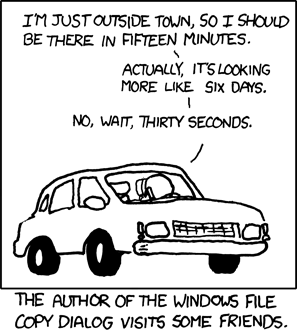
And I didn’t even get to this:


(Seriously, for the love of all that’s holy, and unholy, while you’re at it, fix this.)

*People complain about Vista.  It's got nothing on Me.
**Please.  (It's impossible to resist)